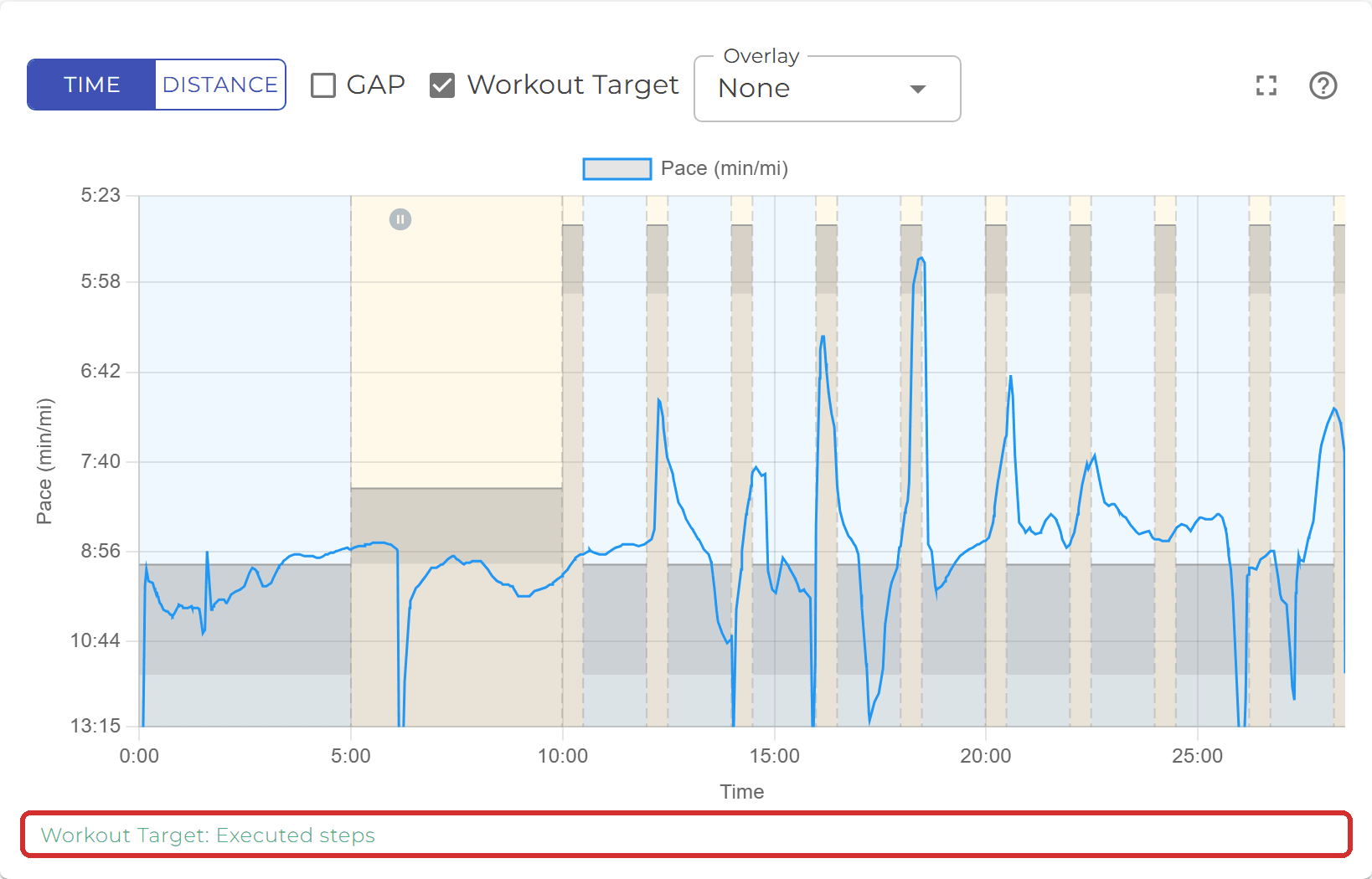
A chart that shows the target
Open a finished workout with watch data and every step with a pace or power target now has a grey box for the target range, with a lighter grey skyline underneath for anything slower. If the line sits in the box, the rep was on target. The background tint shows each step’s intensity, and the Workout Target checkbox hides the boxes when you just want the line.
The scale is better too. Fast targets no longer fall off the top of the chart, and the time axis ends where your workout ended.
Boxes on the laps you actually ran
When your watch recorded a structured workout, each box now sits where you ran that step, not where the plan said it would be. If you cut a session short, you’ll see only the reps that happened. If your watch split a step with an auto-lap, it’s still one box.
A caption under the chart tells you where the targets came from: Executed steps, Planned, or Targets from the watch when the plan changed after it went to the watch. Bike workouts work the same way, with watt targets on a power line.
Details at a tap
Hover over the chart, or touch and hold on a phone, for one card with the moment, the step (“Repeat 7 of 12”) and three numbers: Current, Target and Lap average. If the watch was stopped at that point, the card says how long for, so pauses finally work on phones too.
Made for your phone
- More room. The chart runs edge to edge, and the side labels are gone because the legend names the lines.
- A gear for the options. GAP, Workout Target and Overlay sit behind a gear icon. The menu stays open while you change several.
- Expand it. The expand icon fills the screen with the same chart and the same settings. Rotate your phone for an even wider view.
New to any of this? The ? icon on the chart opens Reading a workout, with a picture for each part.
Browse the library by body part
In the Session Tracker’s exercise search, Browse the library now opens on tiles with counts: Chest, Back, Legs, Shoulders, Arms, Core, Glutes, Full body and Cardio, plus a row for equipment.
Tap a tile, narrow it with the equipment chips, or use Search within to type inside it. If what you typed also matches exercises outside your tile, a line tells you how many and takes you to them.
Coaches: star exercises from the Session Tracker
Coaches can now star an exercise right in the Session Tracker’s search, from the list or the exercise preview. It’s starred for the whole team straight away, and your list is headed Team picks. Athletes see it under Coach’s picks, with anything starred in the last 14 days first and marked New.
Fixes & polish
- The right workout gets the match. When a finished workout could match more than one assignment, Smagpie now picks the one aimed most directly at the athlete (individual, then group, then team), then the closest to what they did. Existing matches don’t change.
- Target boxes that were missing or wrong. Some charts drew no boxes, or took them from a different workout. They now come from the right one.
- A session on another device. If you built a session as you went and then opened the Session Tracker elsewhere, you can now finish or discard that session and carry on.
- The exercise form. Instructions now come first, then a Brief description, with a tip on each saying where it shows up.
What do you still wish the chart told you? Tell us in Discord.